Installation
Installing the Seafile software varies slightly depending on your operating system.
- Windows: Run the installer. During installation, you can choose to change the default application location and enable automatic startup.
- Mac OS: Drag the software into the Applications folder, then run it.
Initial Setup
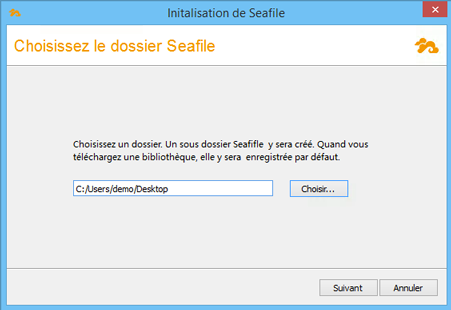
A first dialog box will allow you to define the directory where your libraries will be stored by default.
Next, you will need to add an account.
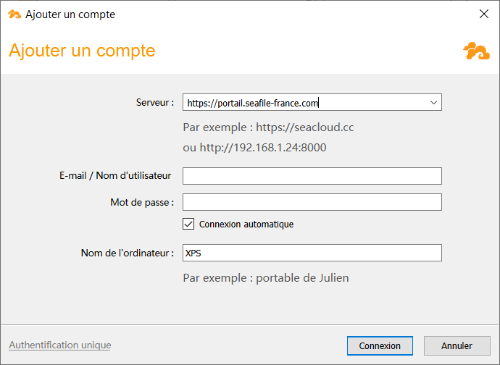
You will need to provide the following information:
- The server to use (https://portail.seafile-france.com in our case)
- Your user credentials (Seafile account and password)
- The name of your machine, which will already be pre-filled
After completing this initial setup, the main window will appear.
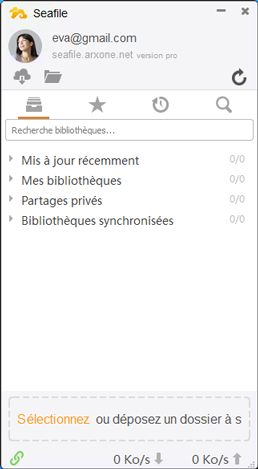
You can safely close it or manage your shares.

Warning
Attention! In some cases, Seafile may experience issues related to HTTPS certificates. This may cause synchronization to stop.
To fix this, follow these steps:
Click on the Seafile icon located in your system’s notification area.

Select "Settings", then in the settings window, choose the "Advanced" tab.
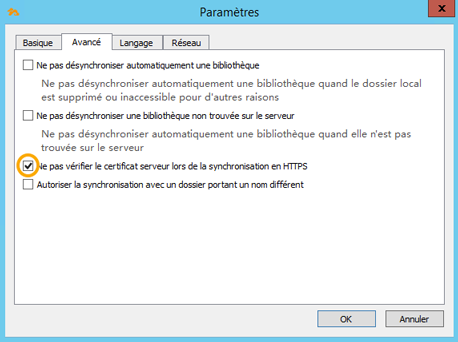
Make sure that the option "Do not verify server certificate when using HTTPS synchronization" is checked. If it is not, enable it.
Before getting started, it is essential to have a Seafile account and to ensure that you meet the technical prerequisites.