Groups
Seafile groups correspond to user groups on the data-sharing platform.
They allow you to share libraries, and create conversations or wikis directly within this set of profiles.
Create a group
To create a group, follow the procedure below from the Seafile web portal:
Click on "Shared with groups"
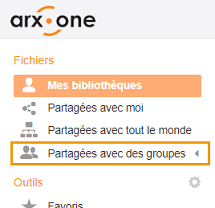
Existing groups will appear.
Click on the "All groups" line
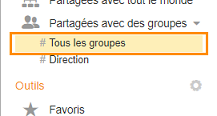
On the right side of the interface, existing groups and their associated libraries will appear:
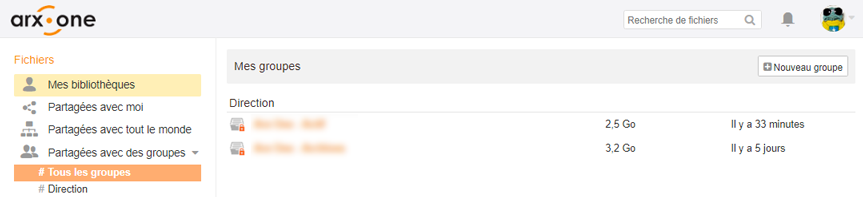
To create a new group, click on the "New group" button
In the dialog that appears, enter the name of the group to create.
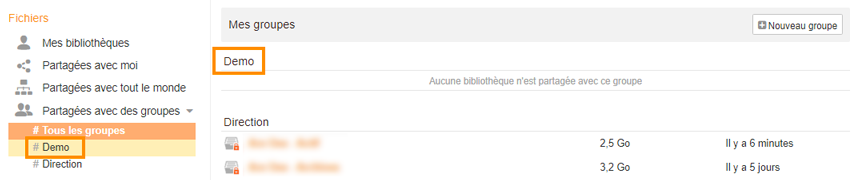
Once validated, the new group will appear in the list:

Manage group properties
There are two ways to access group properties:
- By clicking on the group name in the "Shared with groups" section
- By clicking on the group name in the "My groups" area
Create a library
Simply click on the "New Library" button.
Manage the group
By clicking on the gear icon, you can:
- Rename the group
- Transfer group ownership
- Add a Wiki to the group
- Import users (via a CSV file containing a list of users)
- Manage group members (add and remove users individually)
- Delete the group
View group members
The icon below displays the members present in the group:

Discuss within the group
You can leave chat-style messages for other group members using this icon:

Members involved in the discussion will be notified via the icon located between the profile photo and the search field at the top of the interface:

Group deletion
Important! Before deleting a group, make sure to delete or transfer the libraries linked to it.