QNAP Platform
Agent Installation
The backup agent relies on two packages:
.NET 8.0 FrameworkArx One Backup
In order to install these packages, you must add a package source in the AppCenter.
To do this, go to the AppCenter settings and add the entry https://get.arx.one.
Linking an Account to a QNAP Agent
To configure a backup account with a QNAP agent, make sure the agent is properly installed on the target machine and follow the procedure below:
- Open a browser at the following address: http://nas-ip:10060
- Enter the credentials of the backup account you want to assign, then link it to the agent.
Video procedure:
Update
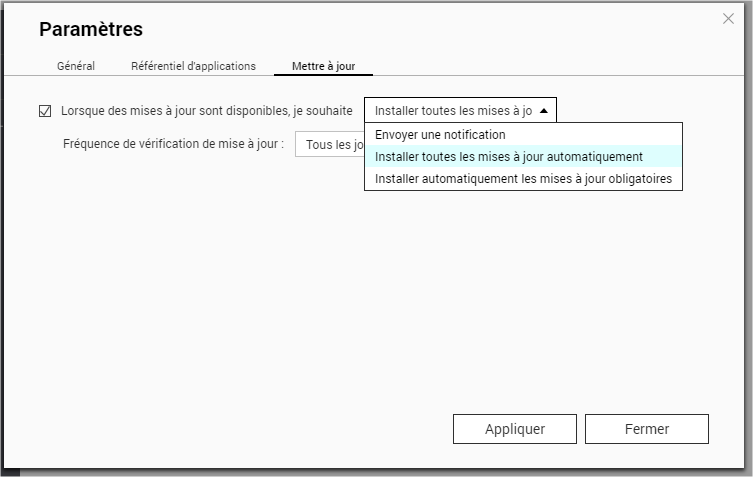
The NAS can be configured to perform updates automatically in the AppCenter settings.
Otherwise, you must connect to the NAS and install the available updates manually.