File Restoration
There are two distinct restoration cases:
- The file has been deleted
- The file must be restored to a previous version (usually after being overwritten)
In all cases, restoration operations are performed from the Seafile web portal.
Log in at: https://seafile.arxone.net
Warning! A file or a file version can only be restored during the retention period (history) configured in the library.
Deleted File
Once connected to the portal, access the library containing the file to restore.
In the menu located below the library name, click on the trash icon.

The list of deleted files in the library is then displayed.

When hovering over the file name, you can click the "Restore" action that appears on the right to restore it to your library.

Previous Version
Once connected to the portal, access the library containing the file to restore, then navigate to its location.
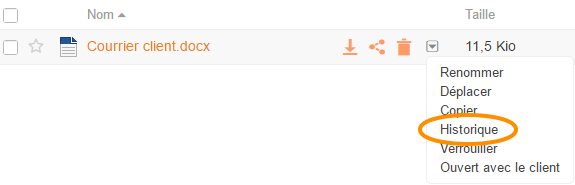
When hovering over the file name, a button to open a contextual menu will appear on the right:

Click it and select "History".
You will then see all available versions of your file.

When hovering over the file versions, different options will appear on the right:
- Restore directly replaces the current version with the selected one
- Download does not overwrite the current version but saves the selected version to your download folder. This cautious option allows you to verify that it is the correct version before overwriting the current one
- View displays the file content directly in your browser (only for supported file types)