Backup Accounts
Principle
A backup account is a secure silo designed to receive backup data generated by an agent.
Accounts are independent from each other. They are not impacted by actions performed on other accounts (creation, deletion, etc.).
Accounts can be organized hierarchically.
ℹ️ The operating mode is very similar to a bank account:
- To deposit or withdraw money, you need at least banking credentials.
- If one account is closed, your other accounts are not affected.
Credentials
Name
Accounts are identified by a name.
The account name may contain several parts separated by the > symbol. This symbol represents hierarchy.
Examples:
company: a single account with no parent. It is called a root account and is generally used by resellers.company>client:clientdescends fromcompany.company>client>machine:machinedescends fromclient, which descends fromcompany.
Account name depth is unlimited.
You can use advanced naming models such as company>client>site>service>user>machine...
ℹ️ Account names must be used in full, exactly like a URL.
If you try to install the account
company>client>machineusing only part of the name (client>machineormachine, for example), the account will not be recognized.
Password
Accounts can only be used with a name and password combination.
For security and confidentiality reasons, a lost password cannot be reset.
⚠️ We strongly recommend storing your passwords in a secure location.
For security reasons, lost passwords cannot be reset. It is essential not to lose them.
Best Practices
One Account = One Agent = One Machine
The golden rule for account usage is:
💡 one account = one agent = one machine
Do not use the same account on multiple machines at the same time.
If you change machines, simply reinstall the agent using the same account to recover your data history.
Keep Your Passwords Safe
The security model, designed to guarantee data confidentiality and protection, does not allow password overwriting.
⚠️ Store your passwords securely.
It is essential not to lose them.
Account Naming
We recommend integrators create accounts using the model integrator>client>machine:
- If the client has only one machine, you do not need to create
integrator>client;integrator>client>machineremains independent. - If the client wants to back up new machines, you can create accounts such as
integrator>client>nas,integrator>client>server, etc. - If you want to group these accounts (for presentation, policy application, or global quota purposes), you can create
integrator>client.
This organization allows:
- Flat accounts for single-machine clients
- A tree view for larger environments
- Assignment of a global quota or group policy at client level
ℹ️ Each account remains independent; names create the hierarchy.
If you create
integrator>client>machine:
integrator>clientis optional and can be created later.- Deleting
integrator>clientwill not delete its child accounts.
Backup Account Management
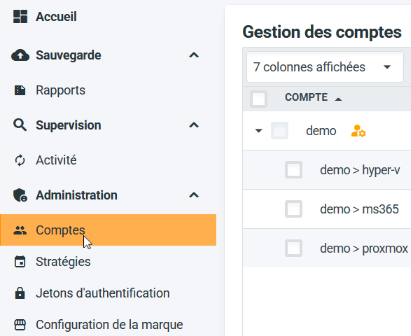
To manage your backup accounts, log in to the management console.
Then go to the Accounts activity in the Administration section.
Account Creation
To create a new account, click the "Create a backup account..." button at the bottom of the interface.
The account will automatically descend from the account you are connected to.

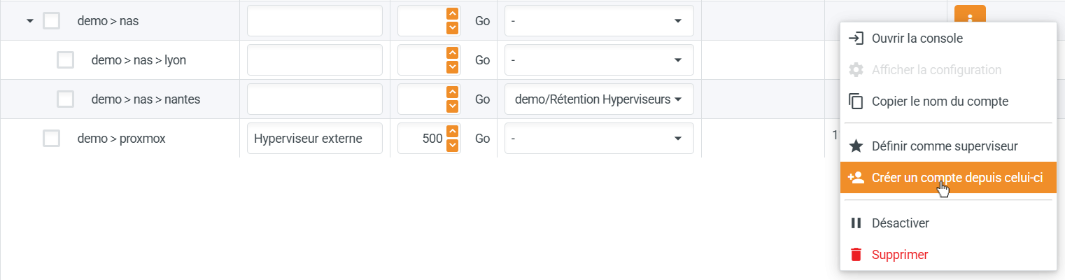
To create a child account of an existing account, you have two options:
- Click "Create a backup account..." and enter the remaining name elements after your current account (example: connected to
company, createcompany>clientby enteringclient>new-account) - Use the parent account action menu and select "Create account from this one"
The password strength indicator is informational only and does not block account creation.
The PGSSI-S compatibility validates compliance with healthcare data backup standards.
⚠️ An account must only be used on one machine at a time.
Rule: one account = one agent = one machine!
Storage Allocation (Quota)
To assign a storage quota, enter the allocated volume in gigabytes in the "Allocated Space" field.
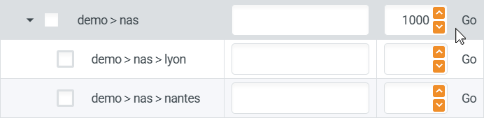
To assign a global quota to a client with multiple machines, set it on the client root account, for example company>client.
Once finished, click "Save Changes".

Comments
The comment field lets you associate custom text with your backup accounts.
This text also appears on the supervision dashboard.
Enter your comment in the dedicated field:
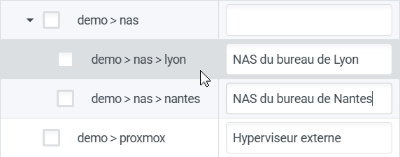
Click "Save Changes" to keep your comments.
Account Login
You can connect to your backup accounts from account management.
Click "Open Console" in the account action menu.
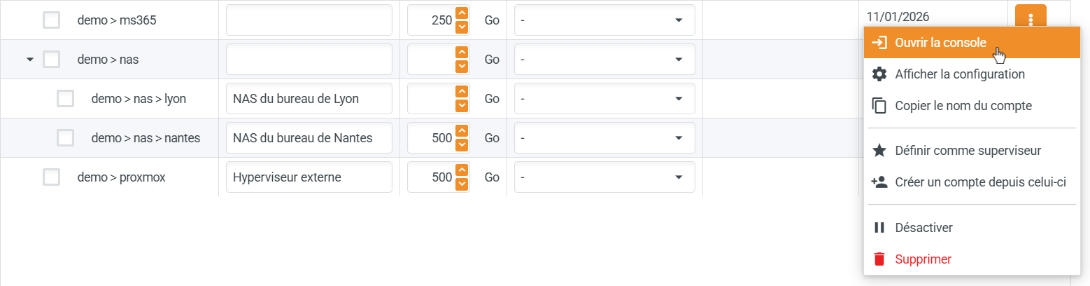
A new browser tab will open with the login prompt.
You can then manage settings, restore data, and perform other operations.
Cloud-to-Cloud Assignment
To back up Microsoft 365 data, you can associate an account with a cloud-to-cloud agent.
Click "Assign to Cloud-to-Cloud Agent" in the account action menu.

ℹ️ Using a cloud-to-cloud agent:
- Avoids generating traffic on the client site
- Does not require a dedicated backup machine
Set as Supervisor
Each backup account reports information to supervision.
Accounts used only for grouping can be set as supervisor accounts.
This will:
- Prevent them from performing backups
- Disable alerts for them
Click "Set as Supervisor" in the account action menu.
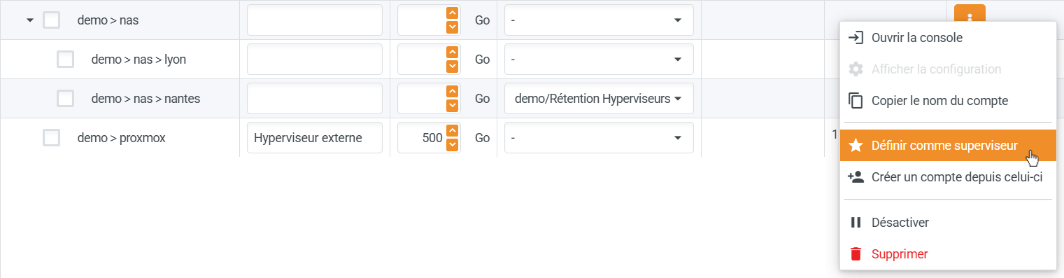
The supervisor role can be revoked at any time.
Disable or Delete Accounts
Disabling an account blocks backups (not restores) without deleting data.
Deleting an account permanently removes all backup data.
Do not delete accounts lightly — "with great power comes great responsibility" 😉
ℹ️ Account deletion is not immediate.
It is scheduled for the next morning.
⚠️ In case of accidental deletion, contact technical support before execution.
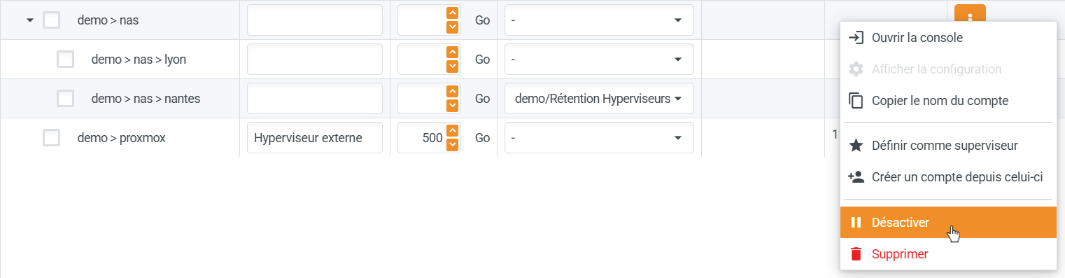
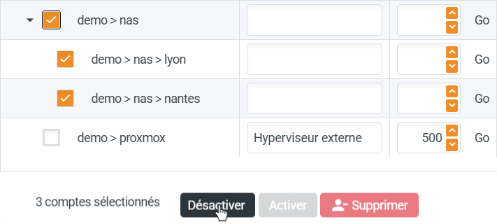
Apply a Policy
You can assign a policy to an account or group.
Select the policy in the "Applied Policy" dropdown.
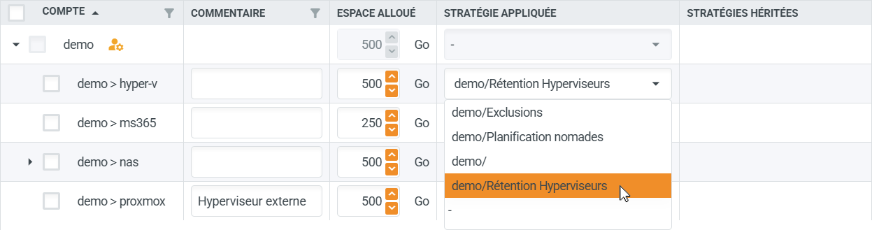
Click "Save Changes".
Backup Account Security
Console access requires account credentials.
The account menu at the top right shows the active account.
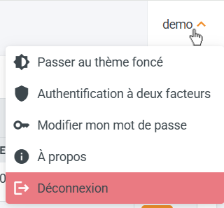
Change Password
Enter your current password and the new one twice.
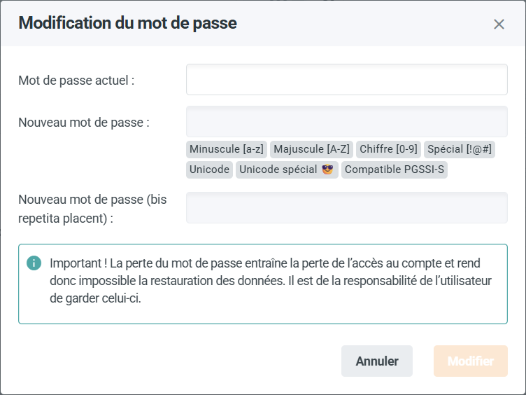
ℹ️ You must know the current password to change it.
Two-Factor Authentication
You can enhance security with two-factor authentication.
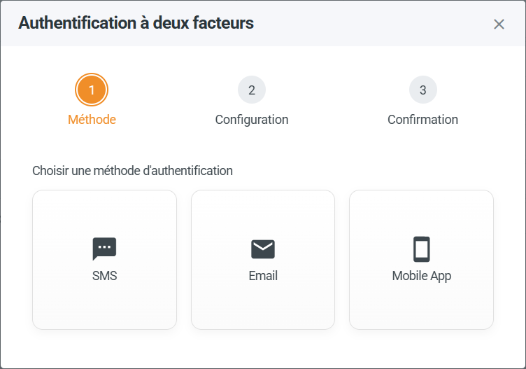
Three methods are available:
- SMS code
- Email code
- Authentication app (TOTP)
For mobile apps, QR code scanning is required.