Office 365 Backup
Adding to the Selection

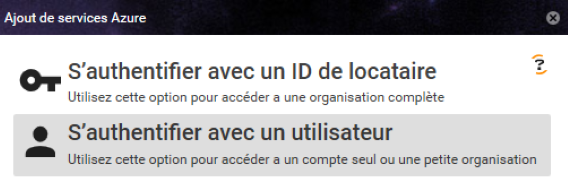
To add an Azure server to the selection and back up Office 365 services such as Outlook, OneDrive, and SharePoint, two methods are available:
- Using the Tenant ID — Recommended, as this method provides full permissions to back up all files.
- Using a Microsoft account — This method is more limited in terms of access rights and does not allow backing up all files.
Using the Tenant ID
What is the Tenant ID?
The Tenant ID is a unique identifier associated with your Azure Active Directory account, required to authorize a connection with full permissions.
Where to Find the Tenant ID?
You can retrieve your Tenant ID in two ways:
-
Directly via Microsoft Entra:
Click here to access your Entra console, where you will find the Tenant ID in the "Overview" section. -
From the Azure Portal:
- Go to the Azure portal: https://portal.azure.com/
- Navigate to Azure Active Directory.
- In the side menu, select Properties.
- Scroll through the properties until you find the Tenant ID field, which is a UID-type identifier. You can copy this identifier to use it in the configuration.
Using a Microsoft Account
If you prefer to use a Microsoft account to add an Azure server to the selection, you will only need your login credentials (email address and password). However, please note that this method provides limited permissions and does not allow a complete backup of Office 365 files.