Selection
Navigating the Tree Structure
This section of the interface displays a tree structure representing the file systems available for backup. These may include the local file system, a network share, a Hyper-V or Proxmox hypervisor, or an SQL or HFSQL database server.
Each element in this tree, called a node, can contain other elements (data to back up, machine, disks, directories, or files). For example, a disk is a node and contains a set of files and directories.
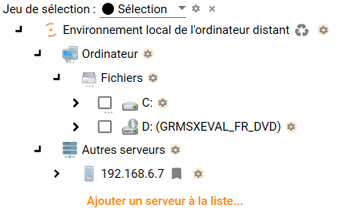
When a node contains elements, you can expand it to access its contents or collapse it.
Adding Data
To add data to the backup selection, simply click the checkbox immediately to the left of the node name. The selected data is then included in the global selection.
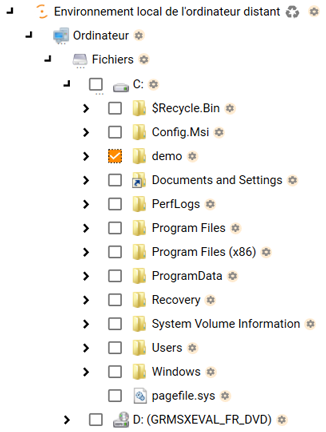
Once you have finished adding data, click "Save changes to this selection". This permanently validates your selection and saves it to the configuration file.
Office 365 Backup
Excluding Data
When you have selected certain nodes, you can choose to exclude some of their child elements.
For example, you can select an entire user profile and exclude its download directory. Or select a folder and exclude certain files.
To exclude data from a node, expand its tree and uncheck the nodes you do not want to back up.
Editing Node Properties
Clicking the gear icon next to a node allows you to inspect its properties, as shown below:
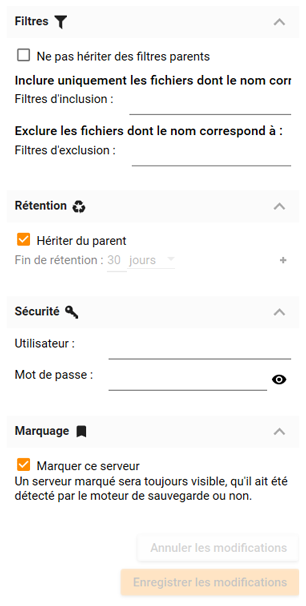
From the inspector, you can modify:
- Inclusion and exclusion filters, represented by the funnel icon:

- Data retention, represented by the recycle icon:

- Security (authentication, for network shares only), specific to the node, represented by the key icon:

When some of a node’s properties are not empty, the icons corresponding to the modified properties are displayed to the right of the node name.
All nodes inherit properties from their parent nodes. If you want to apply properties different from those of the parent nodes, you must uncheck the property inheritance box.
Inclusion and Exclusion Filters
Once the basic selection has been made, you can refine it using a system of inclusion and exclusion filters:
Filters are a very powerful way to refine your selection. Exclusion filters allow you to avoid backing up file types you consider undesirable. Inclusion filters, on the contrary, allow you to back up only the specified file types.
To work with multiple file types, you must specify one file type per line in the desired field in the filter section.
If you want to exclude music files, for example, you can specify: *.mp3, *.aac, *.ogg, etc.
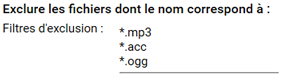
If, on the contrary, you want to include files created with Microsoft Word, you can specify: *.dot, *.doc, *.docx, etc., as shown below:
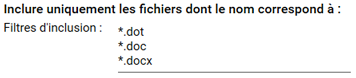
Warning! Be careful when using inclusion filters. They restrict the types of files that are backed up, effectively excluding all other file types.
Options
- Follow symbolic links / reparse points: When this option is enabled, the software follows symbolic links and reparse points encountered while scanning the sources, and includes the content they point to in the backup. If disabled, only the link itself is backed up, without traversing its target.
- Enable persistent change tracking: Our article on RCT (RCT: Resilient Change Tracking)
- Use archive bit: When this option is enabled, the software uses the archive attribute of files to determine which ones have been modified since the last backup. Only files with the archive bit set will be backed up, optimizing backup time and storage space. ⚠️ The archive bit is only available on Windows file systems (NTFS, FAT32, exFAT).
Data Retention
Retention allows you to decide how your backup data ages over time. It is up to you to adjust the settings to determine how versions are gradually spaced out over time or how long you want to keep your backups.
You can find a complete explanation of backup retention and its configuration on this dedicated page: Retention
Security
To select data stored on a network share, please add the share server to the list of available resources.
To do this, enter the machine name or its IP address in the dedicated field at the bottom of the selection area.
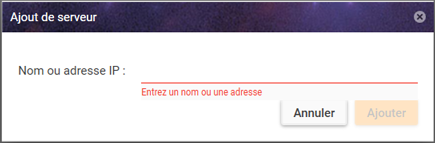
Once the server appears in the list of resources accessible to the selection, click its name to display the properties panel.
In the security properties, uncheck the "use parent value" box, then enter the username and password required to access the data share.
Once the credentials are saved, the key icon representing security properties will appear next to the machine name or address.