Console
Console or Web App?
Both exist. The feature comparison is available here.
Using the Backup Management Console
To access the console, you must have it installed and have the credentials for your Backup Account.
You can access the console in two ways:
- By clicking the Arx One Backup icon in the Windows system tray, if the backup agent is installed on the machine
- By launching the "Arx One Management Console" application from the Start menu
For more detailed information about connecting to the console, see the dedicated page.
Connection
Although very easy to use, the backup management console is very powerful.
It allows you to connect to:
- a local backup agent (on the same machine)
- a backup agent on the LAN
- a backup agent located anywhere else (if it has an Internet connection)
For more information, see the connection page.
Appearance
The interface is divided into four main parts:
- Tabs
- Docked tabs
- Account
- Support
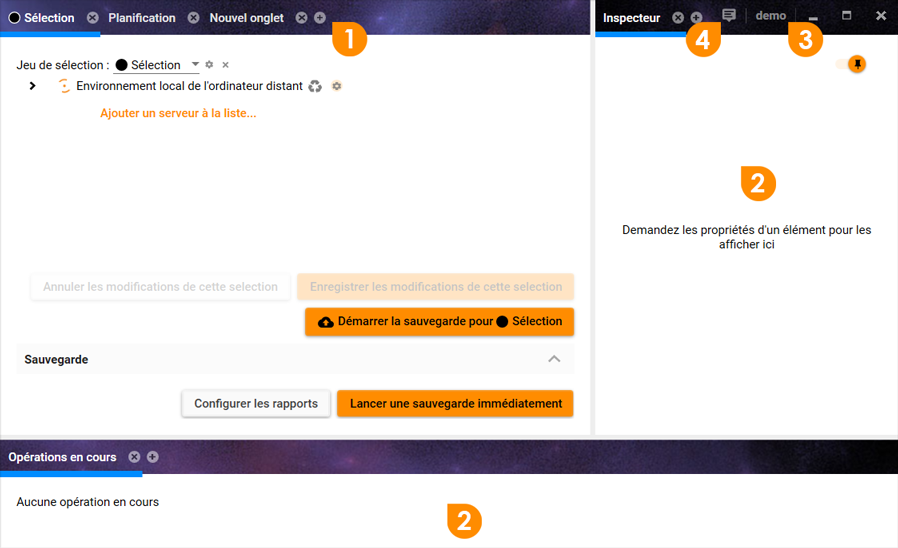
Tabs
Tabs are located at the top of the interface and allow access to different features. You can:
- Move tabs: click and drag them to a new position.
- Close tabs: a cross appears when you hover over a tab. Click it to close the tab.
- Add new tabs: click the + sign on the right to add a tab.
Docked Tabs
Like in a web browser, you can undock tabs from the main window and open them in a separate window.
You can also re-dock them. When you move a tab near a window edge, dark areas appear to indicate docking zones.
In the screenshot above, an "Inspector" tab and an "Activity" tab are docked on the right and bottom of the main window.
Account
The active account name appears in this area. Clicking it opens the account menu.
Support
Clicking this icon opens a menu showing technical support contact details and allows you to provide feedback.
You can also use the links below to find interface-specific help:
Change Password
Enable Two-Factor Authentication
Some links for the console
-
- No Item Selected
- No Entry Processed
- No OS Update in the Last 60 Days
- Account Not Installed
- File Error
- Schedule Not Executed
- Schedule Not Executed (Agent Offline)
- Account Locked for Maintenance
- Account Locked Pending Integration
- Vendor Support Has Expired
- OS in Extended Support
- End of OS Support
- Backup Ended by Schedule
- Entry Disappeared
- Selected Entry Not Found
- Quota Exceeded
- Vendor Support Expired
- Not Archived: Error (File/Folder Deleted)
- Not Transferred: Error (New File/Folder)
- Transferred (Live Modified File/Folder) or Transferred (Live New File/Folder)
- Suspicious Number of Entries
- Sharing Violation